26 Rock, paper, scissors: your first game
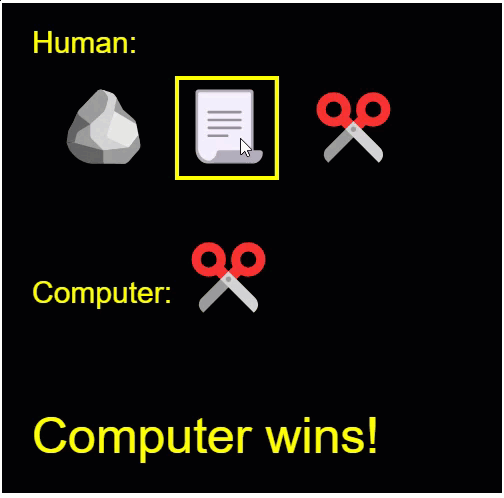
Schere, Stein, Papier. You’ve almost certainly played it in the schoolyard. Two players choose a symbol at the same time, and three simple rules decide who wins. In this chapter the game becomes a program, and your opponent is the computer. You pick rock, paper, or scissors with the mouse, the computer picks by chance, and the program announces the winner. It’s the biggest program of this part, and everything you’ve built so far plays a role in it: event functions, global variables, random numbers, and conditions in every shape you know. You’ll build the game in two stages, and for fast finishers there’s a famous five-symbol variant waiting at the end.
26.1 AI tutor
A game is harder to debug than a drawing, because much of what it knows sits invisibly in variables instead of on the canvas. When your game misbehaves, tell the AI tutor what you clicked, what the program showed, and what you expected instead. The tutor knows this chapter and both stages of the exercise.
Hints and questions instead of finished programs, in English or German.
26.2 A plan from the designer
Here is how one round of the finished game plays out:
- The program shows three symbols next to the label “Human:”.
- While the mouse rests on a symbol, a yellow frame appears around it. When the mouse leaves, the frame disappears.
- The player clicks one symbol. That choice is final.
- The computer immediately shows its own, randomly chosen symbol next to the label “Computer:”.
- The program prints the result at the bottom: the player won, the computer won, or it’s a tie.
In a software team, a designer would hand you a picture like the one below, and your job as the programmer is to match it as closely as you can. Every red measurement is a number your code will need:
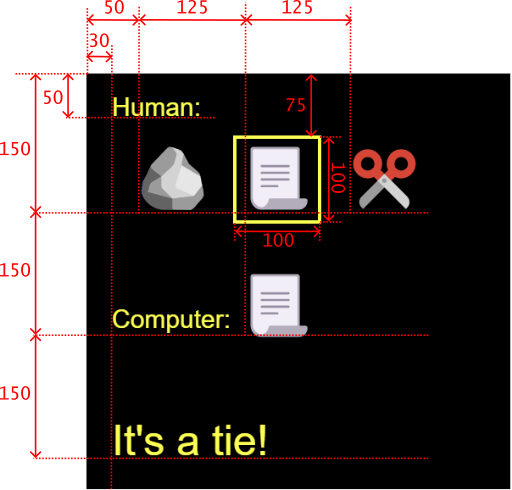
You could type those numbers straight into your drawing calls, but numbers sprinkled through code with no explanation are hard to read. Programmers call them magic numbers, and the cure is to give each one a name. The playground starter for this chapter does exactly that:
const TEXT_LEFT: number = 30;
const STONE_LEFT: number = 50;
const PAPER_LEFT: number = 175;
const SCISSORS_LEFT: number = 300;
const ICON_WIDTH: number = 100;
const ICON_TOP: number = 75;
const ICON_HEIGHT: number = 100;
Constants and their two naming styles are old friends from the snapping chapter (Section 12.4). The names are written in ALL_CAPS because these are global configuration constants, settings for the whole program, meant to be found and tweaked easily. Read them against the design picture, where each one is a red measurement with a name. One naming detail so you don’t stumble: the starter says stone where this chapter says rock; they mean the same symbol.
26.3 Emoji live in strings
The three symbols on the canvas are emoji, the same little pictures you know from chats. For your program, an emoji is nothing special. It’s a character, and characters live in strings. A string can hold an emoji alone, and text draws it like any other text. The bigger the text size, the bigger the picture:
textSize(75);
text("🪨", 50, 150);On Windows, the key combination Windows + period (.) opens an emoji picker right in the playground editor. On a Mac it’s Cmd + Ctrl + Space. And copying an emoji from the exercise description and pasting it into your code works everywhere.
Strings can also do something you’ve so far only done with numbers: they can be compared. In the dice chapter (Section 22.4) you compared numbers with === and !==. The same two operators work on strings, and they are just as exact. Two strings are equal when they match character for character. So "🪨" === "🪨" is true, but "rock" === "Rock" is false, because r and R are different characters. Asking “did the player pick the rock?” will be one string comparison.
26.4 The hover effect
The yellow frame that follows the mouse is the first thing the game needs, and the right function slot for it is one of your oldest: p5.js calls mouseMoved on every movement of the mouse across the canvas. Inside it, the program must answer whether the mouse is over a symbol right now.
That’s a box test, and you wrote one in the binary guesser (Section 25.9). The mouse is inside a box when the horizontal position is in the box’s x range and the vertical position is in its y range, two questions joined by &&. The design gives all three symbols the same vertical band, from ICON_TOP down ICON_HEIGHT pixels, so the vertical half of the question has the same answer for all three boxes. Answer it once and keep the result:
const isInVertical: boolean = mouseY >= ICON_TOP && mouseY < ICON_TOP + ICON_HEIGHT;Look closely at that line, because it shows something new. Until now, a boolean appeared only for a blink: born inside an if condition, checked, and gone. But a boolean is a value like any number or string, and a value can be stored. The constant isInVertical holds true or false, its type annotation is boolean, and the three box tests can all use it instead of asking the same vertical question three times.
The second new idea is how the frame disappears again. A condition alone can put the yellow frame on, but when the mouse slides off a symbol, something must take the frame off. The trick is to always draw the frame, and let the condition choose only the pen color. Yellow when the mouse is inside; black, the background color, when it isn’t. A black frame on a black canvas is invisible, so drawing it erases the highlight:
noFill();
strokeWeight(3);
if (isInVertical && mouseX >= STONE_LEFT && mouseX < STONE_LEFT + ICON_WIDTH) {
    stroke("yellow");
} else {
    stroke("black");
}
rect(STONE_LEFT, ICON_TOP, ICON_WIDTH, ICON_HEIGHT);
The rect call sits after the if/else, so the frame is drawn on every mouse move, always in the right color. And the noFill() at the top matters: without it, the rectangle would be filled and paint over the emoji it’s supposed to frame. Paper and scissors each get the same block with their own left edge.
26.5 Your exercise, part 1: the three options
Build the first stage: the three symbols and the hover effect. The computer’s choice and the winner come in part 2.
Paper first. Work out the edges of the three boxes from the design picture and the constants. The first row is filled in as a model:
Symbol Left edge Right edge Top Bottom 🪨 50 150 75 175 📃 ✂️ These twelve numbers are what your
&&conditions will comparemouseXandmouseYagainst. A mistake here shows up later as a box that ignores the mouse, so check each right edge: it’s the left edge plusICON_WIDTH.Read the starter code. The canvas, the label “Human:”, and the constants are already there. One chore while you read: the starter declares its constants without data types, so add the
: numberannotations, like every declaration in this course.Draw the three symbols with
textat text size 75, using the_LEFTconstants for x and the baseline 150 for y.Build the hover effect in
mouseMoved: theisInVerticalconstant, then oneif/elseplus onerectper symbol.Test with your table. Glide the mouse slowly across all three symbols and watch the frame follow. Then check the gaps: between the boxes, for example at x values from 150 to 175, no frame should light up.
One warning before you start: the second part of this exercise contains a sample solution for this part. Don’t look at part 2 until your part 1 works.
26.6 A game remembers its state
Between the click and the end of a round, the game has to remember things: which symbol the player picked, and which one the computer rolled. Values that must survive from one event to the next belong in global variables, the ones from the color worm (Section 15.4). The game needs two, and both hold strings:
let selected: string = "";
let computer: string = "";
Those quotes with nothing between them are the empty string: a string with zero characters. It’s a perfectly normal value, and here it plays the role of “nothing yet”. As long as selected holds the empty string, the player hasn’t chosen; the moment a click stores "🪨" in it, the choice is made. Programmers say these variables hold the program’s state: everything the program has to remember about where it currently stands.
The state also decides which events still matter, because the rules of the game say a choice is final:
- The hover effect must work only before the player has chosen. So the whole body of
mouseMovedmoves insideif (selected === "") { ... }. - A click must count only while the game is still running. So the body of
mouseClickedsits insideif (computer === "") { ... }.
An event function that first asks “am I still allowed to do anything?” is a pattern you’ll meet in every game you ever write.
26.7 The computer’s choice
The computer picks one of three symbols, with equal chances. Rolling a fair whole number is the dice recipe (Section 22.2), and floor(random(0, 3)) gives 0, 1, or 2. But the roll is a number, and the game works with symbol strings, so the roll must be translated. A number-to-symbol translation with exact cases is an if/else if chain, the same move as the hex letters (Section 25.7):
const computerSymbolId: number = floor(random(0, 3));
if (computerSymbolId === 0) {
    computer = "🪨";
} else if (computerSymbolId === 1) {
    computer = "📃";
} else if (computerSymbolId === 2) {
    computer = "✂️";
}
After the chain, computer holds the computer’s symbol, ready to be drawn next to the label “Computer:” and compared against the player’s choice.
26.8 Who wins?
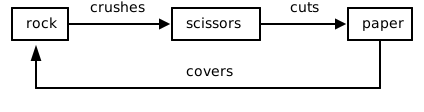
Three rules decide the game, and every arrow in the picture below means “beats”: rock crushes scissors, scissors cut paper, and paper covers rock.
Count the possibilities before writing any code. The player has three choices, the computer has three, so a round has 3 times 3, or nine combinations. In three of them both picked the same symbol, a tie. In three others the player’s symbol beats the computer’s: the player wins. The remaining three go to the computer.
The tie is one comparison, and an elegant one: selected === computer compares the two variables with each other, and one line covers all three tie combinations at once.
The player’s three winning combinations each need two things to be true at the same time, the player’s symbol and the computer’s symbol, so each one is an && pair. And the player wins if the first pair is true or the second or the third, which is exactly what || says (Section 23.4). For the first time, both operators meet in one condition:
let winner: string = "";
if (selected === computer) {
    winner = "It's a tie!";
} else if (
    (selected === "🪨" && computer === "✂️") ||
    (selected === "📃" && computer === "🪨") ||
    (selected === "✂️" && computer === "📃")
) {
    winner = "You win!";
} else {
    winner = "Computer wins!";
}
Two details in that listing deserve a close look:
- The parentheses around each
&&pair are not decoration. They seal each winning combination into one closed question, so any reader sees immediately which comparisons belong together. Whenever&&and||meet in one condition, put parentheses around the groups. - The condition spans several lines. TypeScript doesn’t mind line breaks inside parentheses, and a long condition becomes readable when every
||starts a new line.
And the final else? That’s the “everything else” branch you know from the dice chapter: nine combinations, minus three ties, minus three player wins, leaves exactly the three combinations where the computer wins. No condition needed.
26.9 Your exercise, part 2: the whole game
Now finish the game: the click, the computer’s roll, and the winner.
Compare first. The starter code of part 2 is a sample solution for part 1. Before you write anything, compare it with your own part 1: where did you decide differently? Keep whichever version you like better, but carry over your data type annotations.
Play computer on the winner logic. Copy the table and fill it in using the listing from Section 26.8: which branch is the first to be true, and what does the program print? The first row is filled in as a model.
selectedcomputerFirst true branch Message 🪨 ✂️ first &&pair of theelse ifYou win! 📃 📃 ✂️ 🪨 📃 🪨 ✂️ 📃 Recognize the click. Add the two global state variables. In
mouseClicked, reuse the box test from the hover effect to find out which symbol was clicked, and store that symbol inselected. A click that hits no symbol must leave the game unchanged, so everything that follows, the roll and the result, runs only whenselected !== "". Test it: clicking the empty canvas must do nothing.Make the choice final. Guard the two event functions with the state, as described in Section 26.6: hover only while
selected === "", clicks only whilecomputer === "".Roll the computer’s symbol with the chain from Section 26.7 and draw it as the design shows: the label “Computer:” at text size 30, the symbol at text size 75.
Announce the winner with the logic from Section 26.8, at text size 50 near the bottom edge.
Test all nine combinations. Chance won’t show you all three messages quickly, so force the roll like you forced the dice: replace
floor(random(0, 3))with 0, 1, or 2 for a moment and play against a computer whose move you know. Check your play-computer table row by row. Then restore the roll and hand the game to a classmate: watching another person use your program is the oldest and best test in software.
26.10 For fast finishers: rock, paper, scissors, lizard, Spock
Maybe you know the series The Big Bang Theory, where Sheldon Cooper plays a five-symbol variant of the game. You can watch him explain it (German version). The rules:
- rock crushes scissors, and rock crushes lizard
- paper covers rock, and paper disproves Spock
- scissors cut paper, and scissors decapitate lizard
- lizard eats paper, and lizard poisons Spock
- Spock smashes scissors, and Spock vaporizes rock
Every symbol beats two others and loses to two others.
If the game left you wanting more, rebuild it with five symbols. There is no walkthrough and no sample solution for this stage, on purpose. This time you are the designer. Plan on paper before you code, the way this course always does, and let these questions guide you: which emoji will you use for lizard and Spock? Where do five boxes sit, when the current canvas comfortably fits three? How many combinations does a round have now, and how many of them make the player win? The starter code is the finished three-symbol game, so everything you change, you understand.
26.11 Check your understanding
When your game has won (or graciously lost) its first round against a classmate, take the short quiz below. You answer seven questions about this chapter in your own words, and an AI reads your answers and tells you what you already understand and what you should read again. The quiz is anonymous, and answering in German is fine too.