23 The bouncing ball: your first animation
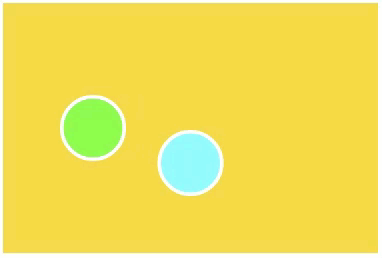
So far, movement in your programs always came from you: no mouse, no motion. This chapter breaks that rule. A ball flies across the canvas all by itself, and when it reaches a wall, a condition notices and sends it back the other way, forever. You’ll first study and extend a one-ball starter program, adding a second ball that bounces vertically. Then, in the advanced stage, you’ll set a single ball loose diagonally, bouncing off all four walls, endlessly crisscrossing the canvas.
23.1 AI tutor
An animation that misbehaves is hard to read, because it moves too fast to see what went wrong. Tell the AI tutor of this part what your ball does and what you expected instead.
Hints and questions instead of finished programs, in English or German.
23.2 An animation is many pictures
Every movie ever made is a trick: a rapid series of still pictures, each slightly different from the one before. Show about 60 of them per second and your eyes see motion. Computer animation works exactly the same way, and each still picture is called a frame.
You’ve probably held a frame-by-frame movie before without calling it that: a flip book, a small pad of paper where every page shows a drawing slightly different from the page before. Flip through it with your thumb and the drawing moves. A frame is exactly one page of such a flip book, and an animated program is a flip book whose pages the computer draws for you, about 60 pages per second. To see the idea in action, watch the video How to make a flipbook.
p5.js has a function slot ready for this, and it’s the last of the big ones: draw. You know the pattern from mouseMoved and mouseClicked. You write a function with the agreed name, and p5.js calls it at the right moments. For draw, the right moment is every frame. p5.js calls it around 60 times per second, from program start until you close the page, no events needed. Whatever draw paints is one frame of your movie.
Compare your three kinds of functions: setup runs exactly once, at the start. Event functions like mouseClicked run when the user does something. And draw runs constantly, on its own. From one frame to the next, your global variables keep their values, and that’s the whole secret of animation. Change a variable a little every frame, and the picture it controls comes alive.
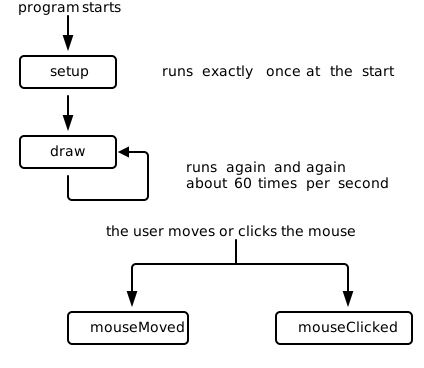
setup runs exactly once, then draw runs in an endless loop, and event functions like mouseMoved and mouseClicked run in between whenever the user acts.23.3 A ball that moves itself
Here is the recipe in its smallest form. One ball on a 300 by 200 canvas, flying from left to right at half the canvas height. Three global variables carry it. The ball’s horizontal position and its current travel direction change from frame to frame, so both are declared with let; the ball’s size never changes, so it is a const:
const circleDiameter: number = 50;
let circleCenterX: number = 0;
let direction: number = 2;
Each frame, draw does three things: repaint, draw, move.
function draw() {
  background("gold");

  stroke("white");
  strokeWeight(3);
  fill("lime");
  circle(circleCenterX, height / 2, circleDiameter);

  circleCenterX += direction;
}
The background call comes first. It repaints the whole canvas and erases the previous frame. You know this decision from the crosshairs and the color worm: without it, every frame leaves its ball behind and the path smears across the screen. Then the ball is drawn at its current position, halfway up the canvas.
The last line moves the ball, using an operator you can almost guess. circleCenterX += direction is the short form of circleCenterX = circleCenterX + direction: take the value in the box, add direction, put the result back. In the color worm you wrote the long form; the short form is what programmers actually type.
Every calculation operator you know has such a short form, and together they are called the compound assignment operators:
| Operator | Short form | Means the same as |
|---|---|---|
+= |
score += 10 |
score = score + 10 |
-= |
lives -= 1 |
lives = lives - 1 |
*= |
direction *= -1 |
direction = direction * -1 |
/= |
speed /= 2 |
speed = speed / 2 |
%= |
colorHue %= 360 |
colorHue = colorHue % 360 |
The pattern never changes: take the value the variable currently holds, calculate with it, and store the result in the same variable. Only variables declared with let can be used this way, because a const never changes its value. The last row uses the % operator from the color worm (Section 15.5), the one that gives the remainder of a division.
Now the animation adds up. With direction holding 2, every frame shifts the ball 2 pixels to the right. At 60 frames per second, that’s about 120 pixels per second of smooth flight. The value of direction is the ball’s speed, in pixels per frame.
23.4 Turning around at the wall
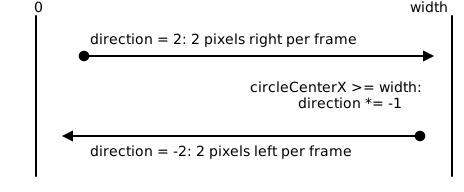
Left alone, circleCenterX grows past the right edge and the ball flies off the canvas, never to return. Time for a condition: when the ball reaches a wall, its direction must turn around.
Turning around is beautifully cheap. A ball moving right has direction 2; moving left means direction -2. One multiplication flips between the two: direction *= -1 turns 2 into -2 and, at the other wall, -2 back into 2. The same line bounces off both walls.
And when should it run? When the ball has reached the right wall or the left wall. That little word “or” is a new operator, ||. The OR operator combines two boolean questions into one, and the combined result is true when at least one of the two parts is true:
if (circleCenterX >= width || circleCenterX <= 0) {
  direction *= -1;
}
One detail deserves a professional’s eye: the comparisons are >= and <=, not ===. Play computer to see why. With a speed of 2 starting at 0, the positions are 0, 2, 4, …, and on the 300 pixel wide canvas the ball lands exactly on 300, so === width would happen to work. Now change the speed to 7. The positions jump 294, 301, and the ball is never exactly at 300. An === condition would never fire, and the ball would sail off the canvas forever. Conditions that guard a border should ask “at or beyond”, not “exactly at”, so even a fast ball that overshoots gets caught.
On an Austrian or German keyboard, the | character is typed with AltGr and the key left of Z (the one with < on it). For ||, type it twice. The character is called a pipe, and yes, the OR operator really is two of them; a single | exists too but does something entirely different.
23.5 Your exercise, part 1: a second ball
The playground hands you the single-ball program from this chapter as your starting point: the three globals, the draw function, and the bounce condition, all of them lines you have just read. Your job is to give that ball a partner.
Read the starter code until every line has a job you can name. One small chore while you read: the playground’s starter declares its globals without data types; add them so the code matches the listings in this chapter (every declaration gets one, as always).
Play computer around the bounce. Copy the table below and follow the ball through five frames on the 300 pixel wide canvas, starting two frames before the right wall. Keep the order of
drawin mind: first the ball is drawn, then it moves, then the condition is checked. The first row is filled in as a model.Frame circleCenterXat the startAfter the move Wall reached? directionat the end1 296 298 298 >= 300 -> no 2 2 3 4 5 One row in your table is the bounce. Now change the starting value to 297 and redo the five rows. The ball never lands exactly on 300 this time, and that is the reason the condition uses
>=instead of===.Add a second ball that travels vertically: it starts at the top, moves down, and bounces between top and bottom walls. It needs its own position variable and its own direction variable, and it should wear a different fill color. Both balls are drawn in the same
drawfunction, after the onebackgroundcall. The second ball’s condition guardsheightand 0 instead ofwidthand 0.Test both directions. Watch at least one full bounce at every wall: right, left, bottom, top.
Look closely at a bounce. The ball’s center reaches the wall, so half the ball sinks into it before turning around. If that bothers your designer’s eye, refine the conditions so the ball’s edge touches the wall instead: the center then must stay circleDiameter / 2 away from each border. Optional, but satisfying.
23.6 Your exercise, part 2: the diagonal ball
Now the advanced stage, and this time the playground gives you an almost empty file: one ball, starting at a random position, flying diagonally, bouncing off all four walls.
Diagonal flight sounds new, but it’s only the two motions you just built, happening to one ball at the same time: the x position changes by a horizontal direction, the y position by a vertical one, every frame. So the ball needs four global variables, two for its position and two for the two directions.
Two things to work out on paper before you code:
- The starting position is random, so the position variables can’t get their values in the declaration.
random(0, width)needs the canvas, and the canvas exists only aftercreateCanvashas run. You know the pattern from the color areas’message: declare the globals without a value,let circleCenterX: number;, and assign them insetup. - Keep the two bounce conditions separate. It’s tempting to chain all four wall checks into one big
||condition, but think about what must happen: hitting the left or right wall flips only the horizontal direction; hitting the top or bottom flips only the vertical one. One if statement per axis, each flipping its own direction variable. If you merged them, a touch of the side wall would also reverse the vertical motion, and the ball would stutter along the walls instead of bouncing cleanly.
Build it in this order: canvas and random start in setup; in draw repaint, draw the ball, move both coordinates, then the two bounce conditions. Test by watching for a while. The ball should visit all four walls and leave each one at the mirrored angle. If you kept the edge refinement from part 1, carry it over here too.
23.7 Check your understanding
When you’ve finished both stages, take the short quiz below. You answer seven questions about this chapter in your own words, and an AI reads your answers and tells you what you already understand and what you should read again. The quiz is anonymous, and answering in German is fine too.