13 The responsive robot
This chapter has two stages. First you draw a robot the way you drew the house and the cat, with coordinates you choose yourself. Then you rebuild the same robot so that it adapts to any canvas size, and on the way you learn one of the big ideas of user interface programming: replace fixed numbers with formulas.
13.1 AI tutor
Replacing fixed numbers with formulas is the big idea of this chapter, and it takes a while to click. Describe your robot and the one coordinate you’re unsure about to the AI tutor of this part.
Hints and questions instead of finished programs, in English or German.
13.2 Stage 1: a robot with fixed numbers
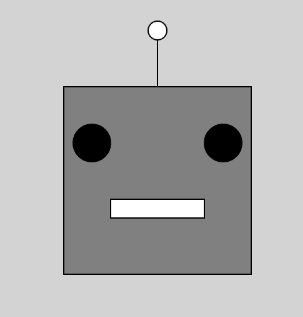
You build the robot from shapes you know well: a rectangle for the head, two filled circles for the eyes, a white rectangle for the mouth, and an antenna made of a line with a small circle on top. Your task is to match the shapes of the example picture; the colors are yours to choose.
Graph paper first for this one: sketch the robot, treat the sheet as a 400 by 400 canvas, and write the coordinates next to every shape. A drawing with this many parts is much faster to plan on paper than to guess at the keyboard. Then type your program in the playground, one shape at a time.
Keep your sketch and your finished code close by. The robot comes back in a few minutes, and your fixed coordinates become the “before” picture of this chapter.
13.3 What responsive design is
Programs run on very different screens: a phone held upright, a tablet held sideways, a wide monitor, a projector. A user interface that adapts itself to the available space is called responsive. You’ve seen responsive design many times without naming it. Open a news website and slowly drag the browser window narrower. The columns rearrange, pictures shrink, and at some point the menu folds itself into a small button. The page responds to the space it gets.
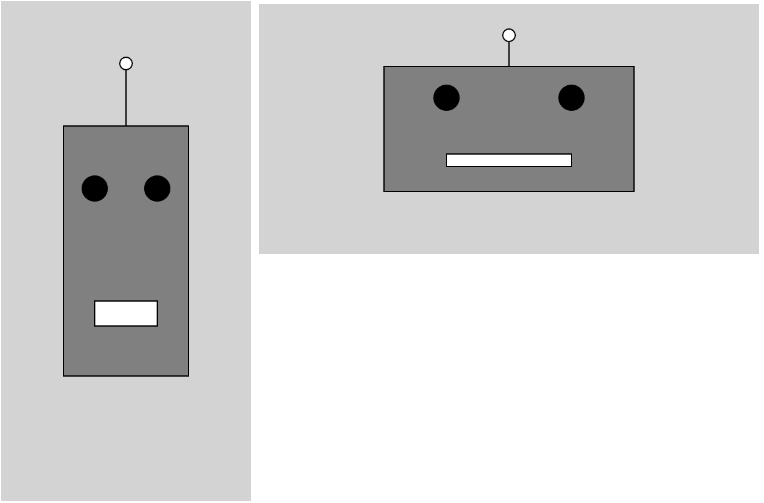
Now look at your robot from stage 1 with that idea in mind. Change createCanvas(400, 400) to createCanvas(200, 400) and run the program. The canvas shrinks, but every shape stays exactly where its numbers put it: the robot sticks out or sits lost in a corner. Fixed numbers are only correct for the one canvas they were written for. A responsive robot needs something better.
13.4 From fixed numbers to formulas
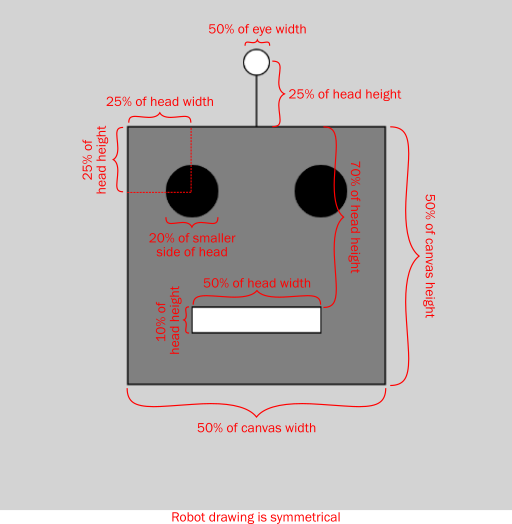
The trick is to stop describing the robot in pixels and start describing it in relationships: the head is half as wide as the canvas, whatever the canvas is. Percentages become multiplications, exactly as in math class: 50% of the width is width * 0.5, 20% is width * 0.2. And the values of width and height come from the two system variables you met in the snapping exercise. They always hold the current canvas size.
const headWidth: number = width * 0.5;   // 50% of the canvas width
const headHeight: number = height * 0.5; // 50% of the canvas height
The head should also sit in the middle of the canvas. Centering has a little formula of its own, and you’ll reuse it often. The middle of the canvas is width / 2, and the head must start half its own width to the left of that point.
const headX: number = width / 2 - headWidth / 2;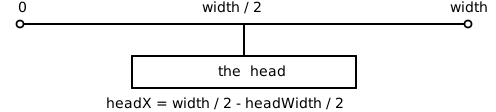
Check the formula with real numbers, on paper. On a 400 pixel wide canvas, headWidth is 200, and headX is 400 / 2 - 200 / 2 = 200 - 100 = 100. Now make the canvas 200 pixels wide. headWidth becomes 100, and headX becomes 100 - 50 = 50. Same formula, new numbers, head centered both times. That is the whole idea of the responsive robot: every coordinate and every size is a formula built from width and height, so every canvas computes its own robot.
One naming note: headWidth, headHeight, and headX are camelCase constants inside setup. They’re computed once when the program starts and never change, and they aren’t global settings, so ALL_CAPS would be the wrong signal.
13.5 The eyes and min
The specification says the eye diameter is 20% of the smaller side of the head. For that you need a way to pick the smaller of two values, and p5.js has one ready: min(100, 200) returns 100, and in general min(a, b) returns the smaller of the two. It’s a helper function just like round from the snapping exercise. Instead of drawing anything, it calculates a value for you.
const eyeSize: number = min(headWidth, headHeight) * 0.2;The smaller side is the safe choice. Picture a wide, flat head on a landscape canvas: 20% of its long side could be taller than the head itself, and the eyes would burst out of the face. Tying the eye size to the smaller side keeps the eyes inside the face, whichever way the head is stretched.
13.6 Didn’t scale already solve this?
Fair question. In the soccer field project, one statement, scale(SCALE), resized the whole drawing, and p5.js did all the multiplying. Now you’re doing the multiplications by hand instead.
In practice, you would use scale whenever it fits the job. When a library offers a ready-made tool, professionals use it instead of rebuilding it; that’s the whole point of libraries. The soccer field is a good example: the field must keep its exact proportions, so one scaling factor for everything is the right tool.
In this exercise, however, pretend for a moment that scale doesn’t exist, for one simple reason: writing size formulas yourself is the skill you’re here to practice. Responsive layouts are full of little rules like “center this”, “20% of the smaller side”, “half of the canvas”, and those rules are formulas, whether a scale command exists or not. Look closely at the two example robots in the exercise, and you’ll spot rules at work that a single scaling factor couldn’t express. The tall robot and the wide robot have different proportions, yet the eyes stay round in both. A decision like that comes from the programmer who wrote the formula, not from a magic command.
13.7 Your exercise: Responsive robot
The exercise description contains a specification picture with every measurement of the robot as a percentage: head, eyes, mouth, and antenna. The robot is symmetrical, which saves you work.
Read the starter code. The head is already there, written with formulas. Walk through it line by line and make sure you can explain every formula; the head is the model for everything you’ll add.
Paper before keyboard. Copy the table below and complete it. Take every formula from the percentages in the specification picture, then work out the numbers for both canvas sizes by hand. The four head rows are filled in for you, because the starter code already contains them. This table is your test plan.
Measurement Formula 400 by 400 200 by 400 Head width width * 0.5200 100 Head height height * 0.5200 200 Head x width / 2 - headWidth / 2100 50 Head y height / 2 - headHeight / 2100 100 Eye diameter min(headWidth, headHeight) * 0.240 Left eye center x Eye center y Mouth width Mouth height Mouth y Antenna top y Type the formulas. One shape at a time, run after every step. Every constant gets an explicit data type, as always in this course.
The final test. Change
createCanvas(400, 400)tocreateCanvas(200, 400), thencreateCanvas(400, 200), and run again. The robot must adapt every time, without you touching anything else. If a shape sticks out or refuses to move, a fixed number is hiding in your code somewhere: find it and turn it into a formula.
Compare what the program draws with the numbers in your table. When they match for both canvas sizes, your robot is responsive.
13.8 Check your understanding
When you’ve finished the exercise, take the short quiz below. You answer six questions about this chapter in your own words, and an AI reads your answers and tells you what you already understand and what you should read again. The quiz is anonymous, and answering in German is fine too.