7 Arcs: drawing parts of a circle

This chapter adds a new shape to your kit: a piece of a circle. You’ll use it to draw a smiley face in the middle of the canvas, with two eyes made from shapes you already know and a mouth that is a real curved smile, a single slice of a circle rather than a full one. That curve is the piece you couldn’t draw before.
Rectangles, circles, triangles, and lines got you a long way: a house, a cat, the Olympic rings. But some pictures need a shape you can’t build from those, a part of a circle. Think of a smiling mouth. It’s not a full circle, it’s just the lower piece of one. In p5.js, that shape is called an arc, and it comes with a new command: arc.
In this exercise you’ll type in a given program again, exactly as it’s shown, like you did in the very first exercise. It draws a smiley face, and its mouth is an arc. Typing first and experimenting afterward is on purpose: arc is the trickiest command you’ve met so far, and the best way to understand it is to see it work and then start turning its knobs.
7.1 AI tutor
arc is the trickiest command in this part, and its start and end angles confuse almost everybody at first. The AI tutor of this part is a good place to ask why a certain pair of angles draws the piece it draws.
Hints and questions instead of finished programs, in English or German.
7.2 The arc command
arc takes six parameters. The first four are like an ellipse: the x and y of the center, then the width and the height. The last two are new: the start angle and the end angle. They say where on the outline the visible piece begins and where it ends.
//  +---------------------------- x coordinate of the center
//  |    +----------------------- y coordinate of the center
//  |    |    +------------------ width
//  |    |    |    +------------- height
//  |    |    |    |    +-------- start angle
//  |    |    |    |    |   +---- end angle
//  v    v    v    v    v   v
arc(200, 250, 200, 150, 25, 180);
Because width and height are separate, an arc doesn’t have to be part of a perfect circle. Make the height smaller than the width, and you get a piece of a flattened circle, an ellipse. That’s exactly what makes the smiley’s mouth look like a relaxed smile instead of a half circle.
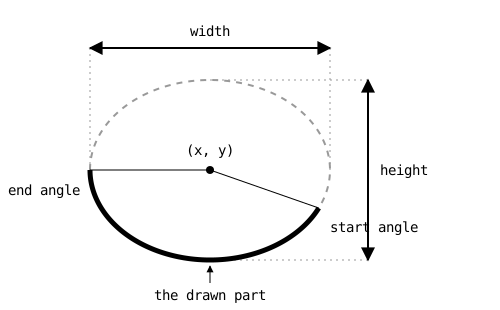
arc, shown for the smiley’s mouth. The dashed ellipse is invisible; only the thick piece between the start angle and the end angle is drawn.7.3 Angles on the canvas
Out of the box, p5.js measures angles in radians, a unit you’ll meet in math class in a few years. The statement angleMode(DEGREES) at the top of the program switches p5.js to degrees, the unit you already know: a full circle is 360°.
Where do the angles point? On the canvas, 0° points to the right, and from there the angle grows clockwise:
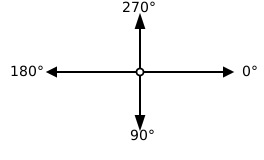
In math class, angles grow counterclockwise, so 90° would point up. On the canvas it’s the other way around, and the reason is an old friend: the y axis points down. The smiley’s mouth shows what that means in practice: arc(200, 250, 200, 150, 25, 180) starts at 25° (a little below the 3 o’clock position) and runs clockwise through 90° (the bottom) to 180° (the 9 o’clock position). The visible piece is the lower part of the outline: a smile.
7.4 Learn commands by experimenting
Understanding the parameters of arc from a description alone is hard. Nobody does it that way, professionals included. The way to understand a command like this is to experiment with it:
- Type in the program and run it, so you have a working starting point.
- Change one parameter at a time, run again, and watch what happens. What does a start angle of 0 do? An end angle of 270? A height of 300?
- If the result gets confusing,
Ctrl+Ztakes you back to the last working state.
Changing one thing at a time is the important part. If you change three numbers at once and the picture jumps, you can’t tell which change did what. One change, one run, one observation: that’s how programmers explore every unfamiliar command.
And remember the tooltips: hover your mouse over arc in the editor, and the playground shows you the documentation of the command, including the list of its parameters.
7.5 Your exercise: Smiley face
Open the Smilie Face (Arcs) exercise in the web playground and type in the program, exactly as shown, every character. Run it and enjoy your smiley. Then take the time to play with the parameters of arc until the command feels familiar: make the smile wider, flatter, upside down, or turn the mouth into a surprised little “o”.
The arc knowledge you build here is not just for smileys. In the next exercise, arcs are the key to a puzzle that full circles can’t solve: weaving the Olympic rings together properly.
7.6 Check your understanding
When you’ve finished the exercise, take the short quiz below. You answer five questions about this chapter in your own words, and an AI reads your answers and tells you what you already understand and what you should read again. The quiz is anonymous, and answering in German is fine too.