4 Type less, draw more
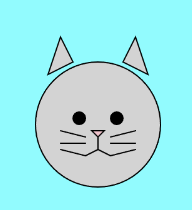
The cat is your practice piece. You’ll put it together from the same rectangles, circles, triangles, and lines you already know, working faster than you did with the house, spending less effort on the typing and more on the picture. The example above is only one idea, your cat can look however you like.
You’ve typed a program character by character, and you’ve designed a house of your own. The next exercise is practice: you’ll draw a cat, again from rectangles, circles, triangles, and lines. Repetition is how programming skills become natural, the same way regular training works in sports or music. The second picture is already easier than the first.
But practice doesn’t mean doing everything the slow way forever. In this chapter you’ll learn a few editor tricks that professionals use all day: copying and pasting code, moving lines around, and letting the editor format your code for you.
4.1 AI tutor
This chapter is about practice and editor tricks. When a keyboard shortcut does nothing on your machine, or a shape refuses to sit where you want it, ask the AI tutor of this part.
Hints and questions instead of finished programs, in English or German.
4.2 Let the clipboard work for you
Pictures are full of repetition. A cat has two ears, which are two very similar triangles. It has two eyes, which are two very similar circles. Its whiskers are several similar lines. Typing each of those statements from scratch is slow and invites typos.
The clipboard solves this. Copy a statement with Ctrl + C (on German keyboards the key is labeled Strg), paste it with Ctrl + V, and then change only the numbers:
triangle(120, 100, 140, 60, 160, 100);   // left ear
triangle(180, 100, 200, 60, 220, 100);   // right ear: pasted, then x values changed
Two tricks make this even faster:
- You don’t have to select a whole line to copy it. Place the cursor anywhere in the line and press
Ctrl+C, and the editor copies the entire line. Ctrl+Vpastes as often as you like. Paste the same line three times for three whiskers, then adjust the numbers.
Two more shortcuts are worth learning:
Alt+Arrow UpandAlt+Arrow Downmove the current line up or down. That’s perfect for fixing the drawing order: if a shape is hidden behind another one, move its statement further down without any retyping.Ctrl+Zundoes your last change. Deleted the wrong line? Pasted into the wrong place?Ctrl+Zbrings it back. You can press it several times to undo several steps, so experimenting is never dangerous.
4.3 Let the editor format your code
In the last exercises you formatted your code by hand: indentation inside the curly braces, one statement per line, a space after each comma. That practice was on purpose, because now you know what well-formatted code looks like, and you can judge the result of what comes next.
The editor can format for you. Right-click anywhere in your code and choose Format Document. The editor straightens the indentation and the spacing of the whole file in one step.
Two things Format Document does not do:
- It doesn’t fix errors. A missing curly brace or a mistyped command name stays broken, and the red squiggly line stays until you fix it yourself. In fact, when the formatting result looks strange, that’s often a hint that a brace is missing somewhere.
- It doesn’t think for you. It applies the formatting rules, but you still decide what the code says. Use it to keep your code tidy while you focus on the picture.
In this course, formatting your code before you hand it in is mandatory. That applies to everything you submit: homework, exams, and projects. Whether you format by hand or use Format Document is up to you. Code that is handed in unformatted will cost you points.
Why so strict? Because code is read far more often than it is written. Your teacher reads it to grade it, your classmates read it when you work together, and you yourself read it again next week when you want to change something. Messy code hides mistakes: a missing curly brace is almost invisible in badly indented code and obvious in tidy code. And in professional teams, clean formatting is simply expected, nobody wants to work with code that others can’t read. Handing in formatted code is a sign of care, like handing in an essay without crossed-out words and coffee stains.
4.4 Your exercise: Cat
Open the Cat exercise in the web playground and write a program that draws a simple cat from basic shapes. The example picture is only an idea; your cat can look completely different.
Work the way you practiced with the house, and add the new tricks:
- Pen and paper first: sketch your cat on graph paper, one square for 10 pixels, and use a ruler to read off the coordinates.
- Draw one shape at a time and run the program after every step.
- For repeated parts (ears, eyes, whiskers, paws), write the statement once, copy and paste it, and change the numbers.
- Use
Alt+Arrow UpandAlt+Arrow Downto put your statements in the right drawing order, and Format Document to keep everything tidy.
4.5 Check your understanding
When you’ve finished the exercise, take the short quiz below. You answer five questions about this chapter in your own words, and an AI reads your answers and tells you what you already understand and what you should read again. The quiz is anonymous, and answering in German is fine too.